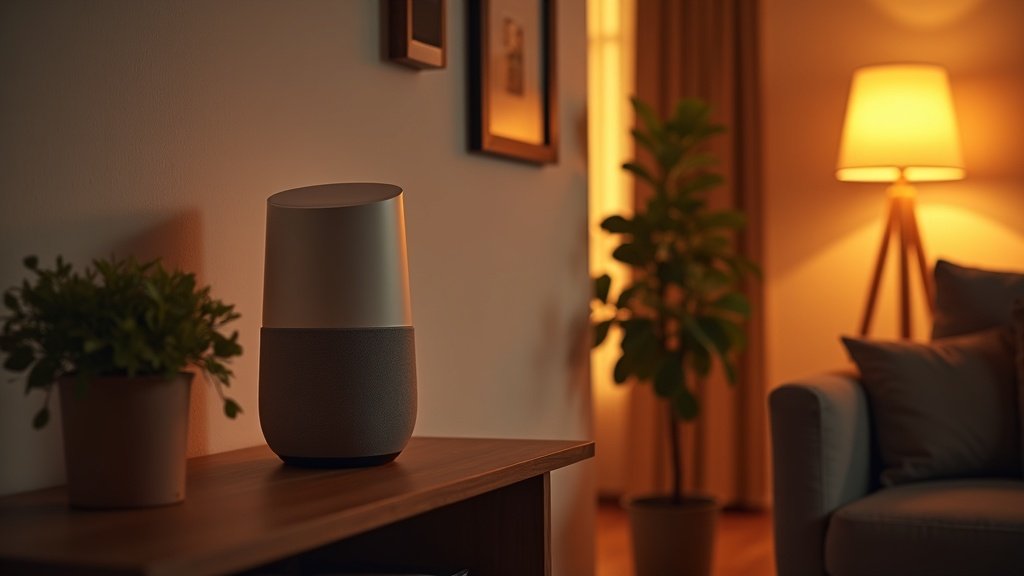
Picture Tony Stark waving his hand to dim the lights, lock the doors, and fire up his espresso machine all at once. That is what most people imagine when they hear “smart home.” Then they check the price tag, wince, and decide it is a project for someday. Here is the thing, though: you do not need Stark money. A hundred and fifty bucks, a decent WiFi signal, and about 45 minutes of your Saturday afternoon—that is genuinely all it takes to turn a regular apartment or house into a home that listens, responds, and occasionally impresses your friends. I have helped dozens of first-timers get started, and the most common reaction is always the same: “Wait, that’s it?”

This page walks through every step from checking your internet connection to choosing your first voice assistant to adding gadgets that actually make daily life easier. No fluff. No jargon without an explanation. Just practical advice built on real-world testing and a practical focus on getting strong value per dollar.
- You can build a functional smart home foundation for around $150
- Start in this order: smart speaker → smart plug → smart bulb → thermostat
- Check your WiFi first—most smart devices need 2.4 GHz, not 5 GHz
- Pick one ecosystem (Alexa or Google) and stick with it—mixing causes headaches
- A smart thermostat pays for itself within a year through energy savings
Step 0: Check Your WiFi First
Before you buy a single smart device, grab your phone and walk to the farthest room in your house. Open a speed test app. If you are getting at least 10 Mbps down and a stable connection, you are golden. If the signal drops or the app spins for ages, your WiFi needs attention before anything else.
Here is why this matters so much: roughly 90 percent of affordable smart home devices connect over 2.4 GHz WiFi. That is the slower, longer-range frequency your router broadcasts. The faster 5 GHz band has a shorter reach and most budget smart plugs, bulbs, and sensors do not support it at all. So even if your phone shows blazing speeds right next to the router, your smart plug in the garage might be sitting in a dead zone.
Quick WiFi checklist
- Router placement: Central location, elevated (on a shelf, not the floor), away from microwaves and baby monitors that also use 2.4 GHz.
- 2.4 GHz network visible? Some newer routers merge the two bands into one name. If your router does this, smart devices usually find the right one automatically. If it does not, make sure you know the 2.4 GHz network name and password.
- Device limit: A typical consumer router handles 20–30 connected devices before it starts choking. If you already have phones, tablets, laptops, a TV, and a game console, adding 15 smart gadgets can push you past that threshold.
- Mesh WiFi: If your home is over 1,500 square feet or has thick walls, a mesh system (like TP-Link Deco or Amazon Eero) replaces dead zones with solid coverage everywhere. Budget mesh kits start around $80 for a two-pack.
Do not skip this step. A $30 smart plug is worthless if it keeps disconnecting because the WiFi signal never quite reaches the kitchen.
Step 1: Choose Your Ecosystem (Alexa vs Google vs Apple)
This is the single most important decision you will make, and you only need to make it once. Think of it like choosing between iPhone and Android—both work, but switching later is painful.
The “ecosystem” is the voice assistant and app that ties all your devices together. When you say “turn off the living room lights,” the ecosystem is what figures out which lights you mean and sends the command. The three options in 2026:
| Feature | Amazon Alexa | Google Home | Apple HomeKit |
|---|---|---|---|
| Cheapest Speaker | Echo Pop — $17 | Nest Mini — $25 | HomePod Mini — $99 |
| Compatible Devices | 100,000+ | 80,000+ | ~1,000 (growing) |
| Voice Recognition | Very good, multi-user | Best natural language | Good, Siri improving |
| Smart Displays | Echo Show 5/8/15 | Nest Hub / Hub Max | iPad as Home Hub |
| Privacy Focus | Moderate | Moderate | Strongest |
| Matter Support | Yes (Thread + WiFi) | Yes (Thread + WiFi) | Yes (Thread + WiFi) |
| Learning Curve | Easy | Easy | Moderate |
| Best For | Budget shoppers, Amazon Prime users | Android users, YouTube fans | All-Apple households |
My recommendation for most beginners: Amazon Alexa. Not because it is technically superior—Google Assistant actually understands conversational questions better—but because the entry cost is the lowest (an Echo Pop regularly drops to $17 on sale), the compatible device list is the largest, and every budget smart home brand prioritizes Alexa support first. If you are deep in the Google/Android world, Google Home is an equally solid pick. Apple HomeKit is excellent for privacy but the hardware cost is at least double, and compatible devices are still limited.
Whatever you choose, commit to one. Running both Alexa and Google in the same home leads to duplicated routines, devices that only respond to one assistant, and confusion when guests try to control anything. One ecosystem, one app, one voice command system. Keep it simple.
Step 2: Start With a Smart Speaker ($25–50)
Your smart speaker is the brain of the whole operation. It is how you will talk to your home, set timers, play music, and control every other device on this list. Here are the three most popular budget options:
Amazon Echo Dot (5th Gen) — $29–50
The default recommendation. It has surprisingly decent sound for its size, a temperature sensor built in, and Eero mesh WiFi integration. At full retail it is $50, but Amazon puts it on sale so often ($22–29 during Prime Day, Black Friday, and random Tuesday deals) that paying full price feels unnecessary. The temperature sensor is genuinely useful for automations like “if the bedroom hits 78°F, turn on the fan.”
Amazon Echo Pop — $17–40
A stripped-down Echo Dot with weaker sound but identical smart home capabilities. If you plan to use it mostly for voice commands (not music), save the ten bucks and grab this one. It does everything the Dot does minus the temperature sensor and 360-degree audio.
Google Nest Mini (2nd Gen) — $25–50
If you chose the Google ecosystem, this is your entry point. Small, wall-mountable, with decent sound and Google Assistant baked in. Google tends to be better at answering follow-up questions and handling natural language. It also integrates with YouTube and Google Photos natively, which some people love. Want a deeper comparison? Check our Echo Dot vs Echo Pop breakdown.
Check Echo Dot prices on Amazon →
Step 3: Add Smart Plugs ($5–15 Each)
Smart plugs are the cheapest and most underrated upgrade you can make. Plug one into a wall outlet, connect whatever “dumb” appliance you want, and suddenly that appliance responds to voice commands and schedules. No wiring. No technical knowledge. Literally plug it in, scan a QR code, and you are done in 90 seconds.
The best uses for smart plugs:
- Table lamps and floor lamps — “Alexa, turn off the bedroom lamp.” This alone is worth it if your lamp is in an awkward corner.
- Coffee maker — Fill it with water and grounds the night before, then schedule the plug to turn on at 6:45 AM. Fresh coffee waiting when you walk downstairs. This was the moment my wife went from skeptic to believer.
- Window fan or space heater — “Alexa, turn on the bedroom fan.” Especially useful if the switch is hard to reach.
- Christmas lights and string lights — Schedule them to turn on at sunset and off at 11 PM automatically.
- Anything you forget to turn off — Set a plug to auto-shutoff at midnight for the curling iron, soldering station, or whatever else causes you anxiety.
Budget picks: The Amazon Smart Plug ($13 for a single, often $6 during sales) works flawlessly with Alexa. For multi-packs, Kasa Smart Plug Mini (EP10) by TP-Link ($7 each in a 4-pack) works with both Alexa and Google. For a full roundup with test results, see our Best Smart Plug 2026 guide.
Check smart plug prices on Amazon →
Step 4: Smart Lighting ($10–15 per Bulb)
Here is where your home starts to feel genuinely “smart.” Voice-controlled lights, lights that dim automatically at sunset, lights that flash red when your team scores—it all starts with swapping a few regular bulbs.
You have two main technology paths for smart bulbs:
- WiFi direct — The bulb connects straight to your router. No hub required. This is what I recommend for beginners because there is nothing extra to buy or configure. Brands: Wyze, Govee, Kasa.
- Zigbee/Hub required — The bulb uses a low-power wireless protocol and needs a central hub (like the Philips Hue Bridge) to work. Pros: more reliable, supports more bulbs, dimming is smoother. Cons: the hub costs $40–60 on top of the bulb price. Not ideal when you are watching every dollar.
For beginners on a budget, go WiFi direct. A two-pack of Wyze Bulb White (tunable, dimmable, 800 lumens) runs about $8 each. If you want color-changing bulbs, the Govee WiFi RGBWW A19 runs roughly $10–12 each. Both work with Alexa and Google, no hub needed.
Pro tip: Start with the room you spend the most time in. Living room and bedroom are usually the biggest impact. Do not try to replace every bulb in the house at once—it gets expensive fast and most people only voice-control the lights in two or three rooms anyway.
Check smart bulb prices on Amazon →
Step 5: A Smart Thermostat ($50–100)
If you only buy one “expensive” smart device, make it a thermostat. This is the single highest-ROI purchase on this entire list. The U.S. Department of Energy estimates that a properly used programmable thermostat saves $100–180 per year on heating and cooling. A $50 smart thermostat pays for itself by spring.
How does it save money? Three ways:
- Scheduling: Set the temperature to drop 5–8 degrees when you leave for work, then warm back up 30 minutes before you get home. You are not heating an empty house.
- Geofencing: The thermostat uses your phone’s location. Left for vacation and forgot to adjust it? The thermostat notices nobody is home and switches to eco mode automatically.
- Usage reports: Monthly energy reports show exactly when you are using the most energy, so you can adjust habits (like dropping the AC one degree at night).
Budget pick: Amazon Smart Thermostat — ~$60
Made by Honeywell, designed for Alexa. Dead simple installation (most homes, 30 minutes with a screwdriver). It does not have a learning algorithm like the Nest, but for the price difference ($60 vs $130), manual scheduling gets you 90 percent of the savings. For a deeper look at top-rated models, check our Best Smart Thermostat 2026 roundup.
Upgrade pick: Google Nest Learning Thermostat — ~$130
Learns your schedule over a couple of weeks and adjusts automatically. Beautiful design. If you are on the Google ecosystem and want something that adapts without manual programming, this is it.
Important: Before buying, check your HVAC system’s wiring. You need a “C-wire” (common wire) for most smart thermostats. About 60 percent of U.S. homes have one. If yours does not, the Amazon Smart Thermostat includes a C-wire adapter in the box, making it the safest budget choice.
Check thermostat prices on Amazon →
Step 6: Security Basics ($30–100)
Smart security is a huge category, and it is easy to go down a rabbit hole of cameras, sensors, sirens, and monitoring plans. For beginners, I recommend starting with one of these two devices—not both at once:
Option A: Video Doorbell ($30–60)
A video doorbell lets you see who is at your front door from your phone, whether you are in the kitchen or across the country. The Ring Video Doorbell (2nd Gen Wired) is the budget king at around $50. It records 1080p video, has two-way audio, night vision, and motion detection. The catch: you need a Ring Protect plan ($4.99/month or $49.99/year) to save video recordings. Without it, you still get live view and real-time alerts, but no playback. For a full evaluation, read our Ring Video Doorbell 4 Review.
For a subscription-free option, the Google Nest Doorbell (Wired, 2nd Gen) stores three hours of event history in the cloud for free. No monthly fee for basic use.
Option B: Smart Lock ($80–150)
A smart lock replaces your deadbolt and lets you unlock your front door with a code, your phone, or your voice. No more hiding keys under the mat. The biggest practical benefit: giving temporary codes to dog walkers, cleaners, or Airbnb guests without copying physical keys. Our Best Smart Lock 2026 guide covers top picks in detail.
The August WiFi Smart Lock (4th Gen) installs over your existing deadbolt in 10 minutes and costs around $100–130. It is the easiest installation of any smart lock because you keep your existing keys as a backup.
Check doorbell prices on Amazon →
The $150 Starter Kit
Here is a concrete shopping list that gets you a legit smart home for under $150:
| Device | Product | Price |
|---|---|---|
| Smart Speaker | Echo Dot (5th Gen) | $29 |
| Smart Plugs | Kasa EP10 2-pack | $13 |
| Smart Bulbs | Wyze Bulb White 2-pack | $15 |
| Smart Thermostat | Amazon Smart Thermostat | $60 |
| Total | ~$117 |
That leaves over $30 in your budget for a third smart plug, an extra bulb for the bedroom, or a surge protector to keep everything tidy. The thermostat alone will likely save you its purchase price within six months.
If you catch Amazon sale prices (Prime Day, Black Friday, or the random daily deal), you could build this exact setup for under $80. I have seen the Echo Dot drop to $17, the Kasa plugs to $9 for a 2-pack, and the thermostat to $40. Patience pays.
The $300 Upgrade Kit
Already set up the basics and want more? Here is the next tier:
| Device | Product | Price |
|---|---|---|
| Everything in Starter Kit | $117 | |
| Video Doorbell | Ring Video Doorbell (Wired) | $50 |
| Smart Lock | August WiFi Smart Lock (4th Gen) | $100 |
| Indoor Camera | Wyze Cam v4 | $36 |
| Total | ~$303 |
At this level you have voice-controlled lighting and temperature, a front door you can monitor and unlock remotely, and an indoor camera for peace of mind when you travel. That covers about 80 percent of what most smart home enthusiasts actually use on a daily basis.
Budget Overview
| Budget | What You Get | Monthly Cost |
|---|---|---|
| $100–150 | Speaker + Plugs + Bulbs + Thermostat | $0 |
| $200–300 | + Doorbell + Smart Lock | $3–4/mo (Ring plan) |
| $400–500 | + Camera + More Bulbs + Smart Display | $3–10/mo |
Notice the first tier has zero monthly costs. Every device in the Starter Kit works without a subscription. That matters if you are budget-conscious, because monthly fees add up fast and defeat the purpose of saving money.
Common Mistakes to Avoid
After watching dozens of beginners set up their first smart homes, these are the five mistakes that come up over and over:
1. Mixing ecosystems
You buy an Echo Dot for the kitchen, a Google Nest Mini for the bedroom, and an Apple HomePod for the living room because each was on sale. Now you have three apps, three voice assistants, and devices that do not talk to each other properly. Pick one. Stick with it.
2. Buying devices that need a hub
That Philips Hue bulb looks nice until you realize it needs a $50 Hue Bridge to function. Same with some Zigbee sensors and older Z-Wave devices. As a beginner, look for “WiFi” or “Works without a hub” on the packaging. You can explore hub-based systems later when you understand why they exist and whether you need one.
3. Connecting smart devices to the guest WiFi network
Guest networks are isolated by design. Your phone on the main network will not be able to discover or control devices on the guest network. Always connect smart home devices to your primary WiFi (2.4 GHz).
4. Forgetting about physical controls
Smart bulbs lose their “smart” if someone flips the physical wall switch off. The bulb needs constant power to stay connected. Solution: either use smart switches instead of smart bulbs, put switch covers over the toggle, or train everyone in the house to use voice commands or the app instead of the switch.
5. Going all-in on day one
Buying twenty devices at once is overwhelming. Things will not pair correctly, you will mix up names, and the troubleshooting becomes a nightmare. Start with the speaker and two or three accessories. Live with them for a week. Learn the app. Then add more. This gradual approach is why Step 2 through Step 6 are numbered in order—follow the sequence.
Matter Protocol: The Future Is Here
You might have seen “Matter compatible” on some product boxes lately. Here is what that means and why it matters (no pun intended).
Matter is a universal smart home standard developed jointly by Amazon, Apple, Google, and Samsung (plus about 300 other companies). Before Matter, a device built for Alexa might not work with Google Home, or an Apple HomeKit product would not talk to Alexa. Matter fixes that. A Matter-certified device works with every major ecosystem out of the box.
As of early 2026, here is the state of Matter:
- What works well: Smart plugs, bulbs, light switches, sensors, and thermostats. Most major brands now ship Matter-enabled versions.
- What is still rough: Cameras, robot vacuums, smart displays, and anything that streams video. Matter support for these is coming but not widespread yet.
- Should you only buy Matter devices? Not necessarily. For beginners buying within one ecosystem, standard WiFi devices are still perfectly fine and often cheaper. Matter is most valuable if you think you might switch ecosystems someday, or if you want a device to work with both Alexa and HomeKit simultaneously.
Bottom line: Matter is a nice bonus, not a requirement. Do not pay extra for it unless cross-ecosystem compatibility is important to you right now. But if two products cost the same and one is Matter-certified, go with the Matter one. Future-proofing never hurts.
Setting Up Your First Routine
Once you have a speaker, a couple of plugs, and a bulb or two, it is time for the real magic: routines. A routine is a single command that triggers multiple actions. In the Alexa app (or Google Home app), you can create custom routines in about two minutes.
Here are three routines every beginner should set up:
“Good Morning” routine
- Trigger: “Alexa, good morning” (or a scheduled time)
- Actions: Turn on kitchen light to 70%, start the coffee maker (smart plug), read the weather forecast, read the day’s top news headlines
“Good Night” routine
- Trigger: “Alexa, good night”
- Actions: Turn off all lights, lock the front door (if you have a smart lock), set thermostat to 68°F, play rain sounds for 30 minutes
“Movie Time” routine
- Trigger: “Alexa, movie time”
- Actions: Dim living room lights to 15%, turn off overhead light, turn on TV (smart plug behind the TV)
These routines are what transform a collection of gadgets into an actual smart home. A single voice command replacing five manual steps is the moment people “get it.”
Frequently Asked Questions
Do smart home devices work without internet?
Most cloud-based devices (like Alexa speakers and Ring cameras) require an internet connection. If your internet goes down, voice commands stop working. However, some devices with local control (like Lutron switches and certain Zigbee devices) continue to function via physical buttons or local hubs.
Is a smart home safe from hackers?
Use a strong, unique WiFi password (not “password123”). Enable two-factor authentication on your Amazon, Google, or Apple account. Keep firmware updated. And if you are really cautious, set up a separate VLAN or IoT network on your router to isolate smart devices from your computers and phones. For most people, a strong password and 2FA are more than enough.
Can I rent and still have a smart home?
Absolutely. Smart plugs, bulbs, and speakers require zero permanent modifications. Smart thermostats can usually be swapped back before you move out (keep the old thermostat in a drawer). For locks and doorbells, check your lease. Many landlords are fine with it if you restore the original hardware when you leave.
How many devices can my WiFi handle?
A typical consumer router handles 20–30 devices. A mesh system raises that to 50–75+. If you are starting with the $150 kit (5 devices plus your phones and laptops), you are nowhere near the limit.
Our Recommended Starter Kit
Echo Dot (5th Gen) + Smart Plug Bundle
As an Amazon Associate, we earn from qualifying purchases.
You May Also Like
- Best Smart Plug 2026
- Echo Dot vs Echo Pop 2026
- Best Smart Thermostat 2026
- Best Smart Lock 2026
- Ring Video Doorbell 4 Review 2026
- Google Nest Hub Max Review 2026
Disclosure: This post contains affiliate links. If you purchase through our links, we may earn a small commission at no extra cost to you. Learn more. As an Amazon Associate, we earn from qualifying purchases.
New for 2026: if you want the big picture before you optimize for budget, start with our complete beginner’s guide to setting up a smart home in 2026 — ecosystems, Wi-Fi, hubs and where to begin, step by step.