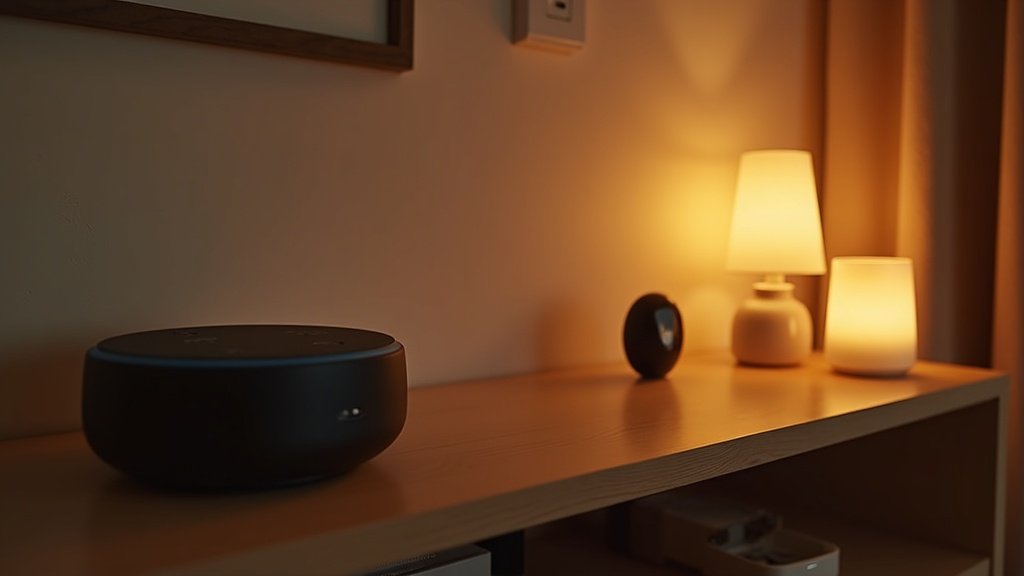
Last October, I hit 23 smart devices in my house. Echo speakers in three rooms, smart bulbs everywhere, a video doorbell, two security cameras, a robot vacuum that maps on its own, smart plugs controlling things I’d forgotten about — the works. And then one Tuesday evening, my Roomba froze mid-clean, my Nest thermostat showed “offline,” and my wife’s Zoom call dropped simultaneously. The culprit wasn’t a power outage or an ISP problem. It was my $80 router from 2021, quietly suffocating under the weight of 23 concurrent connections it was never designed to handle.
I spent the next three weeks testing routers, mesh systems, and network configurations until every single device stayed connected — reliably, all day, every day. This guide is everything I learned, distilled into actionable steps so you don’t have to repeat my mistakes.
Key Takeaways
- Most smart home WiFi problems are router problems — if your router is more than 3 years old, it probably can’t handle 15+ devices
- WiFi 6 (802.11ax) is the minimum standard for any home with more than 10 smart devices in 2026
- Mesh WiFi beats range extenders every time — a 3-pack mesh system eliminates dead zones without halving your bandwidth
- Create a separate IoT network (2.4GHz) to keep your smart devices from competing with your laptops and phones for bandwidth
- You can build a rock-solid smart home network for under $150 — you don’t need enterprise-grade gear
Why Smart Home Devices Kill Your WiFi
Here’s what nobody tells you when you buy your fifteenth smart device: each one maintains a persistent connection to your router. Unlike your phone that connects, does its thing, and goes to sleep, smart home devices keep a constant two-way channel open. Your smart thermostat checks in every 30 seconds. Your security camera streams 24/7. Your smart plugs send status updates every few minutes.
A typical 2022-era router handles about 20 simultaneous connections before performance degrades. But “handles” is generous — at 15 devices, you’ll notice your smart speaker taking an extra second to respond. At 20, commands start failing intermittently. At 25+, you’re in the chaos zone I described above.
The math gets worse when you realize most smart home devices aren’t using just one connection. An Echo Show maintains connections to Amazon’s servers, your music service, your smart home hub, and often a separate connection for its display content. One device, four connections. Suddenly your “20 devices” are actually 40-60 active connections, and your router is drowning.
The three bandwidth killers in order:
- Security cameras — a single 1080p camera uses 2-4 Mbps continuously. Four cameras? That’s 8-16 Mbps of your upload bandwidth, permanently.
- Smart displays — Echo Show and Nest Hub devices pull ambient content, photos, and video even when idle. Each uses 1-3 Mbps.
- Robot vacuums during mapping — when your Roomba or Roborock maps your house, it uploads dense spatial data. Short bursts, but bandwidth-heavy.
The remaining devices — smart plugs, bulbs, sensors, locks — use almost no bandwidth individually (under 100 Kbps each). The problem is connection count, not data volume.
WiFi 6 vs WiFi 6E vs WiFi 7 Explained
If you’re shopping for a new router in 2026, you’ll see these three standards everywhere. Here’s what actually matters for smart home use — and what’s marketing fluff.
| Feature | WiFi 5 (802.11ac) | WiFi 6 (802.11ax) | WiFi 6E | WiFi 7 (802.11be) |
|---|---|---|---|---|
| Max Speed (theoretical) | 3.5 Gbps | 9.6 Gbps | 9.6 Gbps | 46 Gbps |
| Real-World Speed | 200-400 Mbps | 400-900 Mbps | 500-1,200 Mbps | 800-2,000 Mbps |
| Frequency Bands | 2.4 + 5 GHz | 2.4 + 5 GHz | 2.4 + 5 + 6 GHz | 2.4 + 5 + 6 GHz |
| Device Capacity | ~30 devices | ~75 devices | ~100 devices | ~200 devices |
| OFDMA (multi-device efficiency) | No | Yes | Yes | Yes |
| Target Wake Time (battery saving) | No | Yes | Yes | Yes |
| Best For | Basic browsing | Smart homes (sweet spot) | Power users + smart home | Future-proofing |
| Price Range | $30-60 | $60-150 | $150-300 | $250-500+ |
| Our Pick | Skip it | See WiFi 6 Routers | See WiFi 6E Routers | See WiFi 7 Routers |
My recommendation: WiFi 6 is the sweet spot for most smart homes in 2026. It handles 50+ devices without breaking a sweat, costs half of WiFi 6E, and every smart device on the market supports it. WiFi 6E only makes sense if you have bandwidth-hungry devices (4K streaming on multiple screens, VR headsets) alongside your smart home gear. WiFi 7? Unless you’re building a house and want to future-proof for 5+ years, save your money.
The feature that matters most for smart homes is OFDMA (Orthogonal Frequency Division Multiple Access). In plain English: WiFi 5 routers talk to devices one at a time. WiFi 6+ routers talk to multiple devices simultaneously. When your thermostat, smart lock, and security camera all check in at the same millisecond, OFDMA handles all three without making any of them wait.
Mesh WiFi vs Range Extender: Which One You Need
I’ve tested both extensively, and this is one area where the more expensive option genuinely earns its price.
Range extenders ($20-50) take your existing WiFi signal, catch it, and rebroadcast it. The problem: they cut your bandwidth in half. If your router delivers 300 Mbps, the extender’s zone gets 150 Mbps. They also create a second network name (YourNetwork_EXT), which confuses smart devices during roaming. I’ve had smart plugs disconnect permanently after failing to roam between networks.
Mesh WiFi systems ($100-400 for a 2-3 pack) create a single, unified network with multiple access points that communicate with each other on a dedicated backhaul channel. Your smart devices roam seamlessly between nodes without disconnecting. No bandwidth penalty. One network name, one password, zero confusion.
The verdict: If your home is under 1,200 sq ft and your router is centrally located, you probably don’t need either. If your home is 1,200-2,000 sq ft, a 2-pack mesh system solves everything. Over 2,000 sq ft or a multi-story home? A 3-pack mesh is non-negotiable.
Here’s what I actually recommend at three budget levels:
| Budget Tier | System | WiFi Standard | Coverage | Max Devices | Price (3-pack) | Link |
|---|---|---|---|---|---|---|
| Budget Pick | TP-Link Deco X55 | WiFi 6 | 6,500 sq ft | 150 | ~$150 | Check Price on Amazon |
| Best Value | eero Pro 6E | WiFi 6E | 6,000 sq ft | 100+ | ~$250 | Check Price on Amazon |
| Premium Pick | ASUS ZenWiFi BQ16 Pro | WiFi 7 | 8,000+ sq ft | 200+ | ~$450 | Check Price on Amazon |
For most smart home setups with 15-40 devices, the TP-Link Deco X55 is honestly all you need. I’ve run 28 devices on one for four months with zero disconnections. The eero Pro 6E is worth the premium if you also stream 4K on multiple TVs or work from home on video calls. The ASUS ZenWiFi BQ16 Pro is overkill for most people, but if you have a large home and want to forget about networking for the next 5-7 years, it’s the one.
How Many Devices Can Your Router Handle?
This is the question everyone asks and nobody answers honestly. Router manufacturers love claiming “supports 50+ devices,” but those numbers assume most devices are idle. In a smart home, they’re not.
Here’s a realistic breakdown based on my testing:
Budget router ($30-60, WiFi 5): Comfortably handles 10-15 active devices. After that, you’ll notice lag in voice commands, delayed push notifications, and occasional device dropoffs. If you have fewer than 10 smart devices and no security cameras, this works fine.
Mid-range router ($60-150, WiFi 6): Solid performance up to 30-40 active devices. OFDMA and MU-MIMO keep multiple small-data devices (plugs, sensors, bulbs) connected without eating into bandwidth for your high-demand devices (cameras, displays). This is the sweet spot for most smart homes.
Mesh system ($150-300, WiFi 6/6E): Handles 50-100+ devices across multiple nodes. Each node acts as a mini-router, distributing the connection load. This is where you want to be if you’re serious about smart home automation.
The real bottleneck isn’t usually the router’s device limit — it’s your internet plan’s upload speed. If your ISP gives you 10 Mbps upload (common with cable internet), two security cameras streaming at 4 Mbps each will consume 80% of your upload bandwidth. Everything else — voice commands, smart device status updates, cloud syncs — fights over the remaining 2 Mbps.
My rule of thumb: You need at least 1 Mbps of upload speed per security camera, plus 5 Mbps baseline for everything else. Three cameras? You need 8+ Mbps upload minimum.
The 2.4GHz vs 5GHz Decision for Smart Devices
Most smart home devices only work on 2.4GHz. Not because it’s better — it’s actually slower — but because 2.4GHz has significantly longer range and better wall penetration. Your smart plug in the garage doesn’t need 500 Mbps; it needs a signal that can travel through three walls.
Put these on 2.4GHz (they probably require it anyway):
- Smart plugs and switches
- Smart bulbs (Wyze, Sengled, basic Philips Hue)
- Smart locks
- Sensors (motion, door/window, temperature)
- Smart thermostats
- Robot vacuums
- Most smart home hubs
Put these on 5GHz (or 6GHz if available):
- Security cameras (especially 2K/4K models)
- Smart displays (Echo Show, Nest Hub)
- Streaming devices (Fire TV, Chromecast, Apple TV)
- Laptops, phones, tablets
- Gaming consoles
The ideal setup? Two separate SSIDs — one for IoT devices on 2.4GHz, one for personal devices on 5GHz. More on this in the “Dedicated IoT Network” section below.
Router Placement: The Science Behind Signal Strength
I tested signal strength in my 1,800 sq ft two-story home with a WiFi analyzer app, moving my router to six different positions. The results were dramatic.
The rules that actually matter:
1. Elevation wins. Placing my router on a shelf 5 feet off the ground improved signal strength in every room by 10-15%. WiFi signals radiate outward and slightly downward, so a high central position beats a desk-level corner position every time.
2. Center of the house, not the corner. ISPs install your modem near the cable entry point, which is usually a corner. Run an ethernet cable from the modem to a central location for your router. This single change improved my weakest room’s signal from -78 dBm (barely usable) to -58 dBm (strong).
3. Away from these signal killers:
- Microwave ovens — operate at 2.4GHz, directly interfering with WiFi
- Refrigerators and large metal appliances — metal reflects WiFi signals
- Concrete and brick walls — each wall costs you about 50% signal strength
- Fish tanks — water absorbs 2.4GHz signals significantly
- Mirrors — the metal backing reflects signals unpredictably
4. For multi-story homes: Place the router on the top floor if most devices are upstairs, or on the middle floor for even coverage. Signals travel downward better than upward through floors.
Pro tip: Download a free WiFi analyzer app (I use “WiFi Analyzer” on Android or “NetSpot” on Mac). Walk through every room and note signal strength. Anything below -70 dBm is a dead zone candidate. Anything above -50 dBm is excellent. This 5-minute test tells you exactly where you need mesh nodes.
Setting Up a Dedicated IoT Network
This is the single most impactful thing you can do for smart home reliability, and most people skip it because it sounds complicated. It’s not.
What it is: You create a separate WiFi network (SSID) specifically for your smart home devices. Your regular devices (phones, laptops, tablets) use the main network. Your IoT devices (plugs, bulbs, locks, sensors) use the dedicated one.
Why it matters:
- Security — if a cheap smart plug gets hacked (it happens), the attacker can’t access your laptops and phones on the separate network
- Stability — your teenager downloading a 50GB game won’t cause your smart lock to go offline
- Troubleshooting — when something breaks, you immediately know which network is affected
- Performance — IoT devices won’t compete with bandwidth-heavy devices for router resources
How to set it up (takes 10 minutes):
- Log into your router’s admin panel (usually 192.168.1.1 or 192.168.0.1)
- Find the “Guest Network” or “Additional SSID” setting — most modern routers support at least one extra network
- Create a new network — name it something like “HomeDevices” or “IoT-Network”
- Set it to 2.4GHz only — since most smart devices use 2.4GHz anyway
- Enable WPA3 security (or WPA2 if WPA3 isn’t available)
- Enable “AP isolation” or “client isolation” if available — this prevents IoT devices from talking to each other directly, adding a security layer
- Connect all your smart devices to this new network
One catch: Some smart home apps require your phone to be on the same network as the device during initial setup. Temporarily connect your phone to the IoT network for setup, then switch back. After setup, most smart devices communicate through the cloud, so your phone’s network doesn’t matter.
Mesh systems make this even easier. The eero app, for example, lets you create an IoT network with three taps. TP-Link Deco’s app has a dedicated “IoT Network” toggle. No router admin panel required.
Smart Home Hubs and Bridges Explained: Zigbee, Z-Wave, Thread, and Matter
Not every smart home device uses WiFi. In fact, the most reliable ones often don’t.
Zigbee — A low-power mesh protocol used by Philips Hue, Samsung SmartThings sensors, and many IKEA smart home products. Devices form their own mesh network, reducing load on your WiFi router. Range: 30-60 feet per device, but mesh extends it indefinitely. Requires a hub (Hue Bridge, SmartThings Hub, or Amazon Echo with built-in Zigbee).
Z-Wave — Similar to Zigbee but operates on a different frequency (908 MHz in the US), avoiding 2.4GHz interference entirely. Popular with smart locks (Yale, Schlage), water leak sensors, and security systems. Maximum 232 devices per network. Requires a Z-Wave hub (SmartThings, Hubitat).
Thread — The newest protocol, backed by Apple, Google, and Amazon. Low-power mesh like Zigbee, but with native IP support (meaning devices can talk directly to your network without a translation hub). Used by newer devices like the Apple HomePod Mini, some Nanoleaf products, and Eve smart home accessories. This is the future, but the device ecosystem is still growing.
Matter — Not a radio protocol but a unifying application layer that works over WiFi, Thread, and Ethernet. Think of it as a universal translator. A Matter-certified smart plug works with Alexa, Google Home, and Apple HomeKit simultaneously. In 2026, most new smart home devices ship with Matter support. If you’re buying new devices, prioritize Matter compatibility — it eliminates ecosystem lock-in.
What this means for your WiFi: Every device you move to Zigbee, Z-Wave, or Thread is one less device on your WiFi network. If you have 30+ smart devices, offloading 10-15 to a Zigbee/Thread hub can be the difference between a stable and unstable network. A $35 SmartThings hub or a $50 Echo Hub can handle 100+ Zigbee/Thread devices without touching your WiFi at all.
Securing Your Smart Home Network
A smart home network with 20+ connected devices is a massive attack surface. Each device is a potential entry point. Here’s how to lock it down without a cybersecurity degree.
The non-negotiable basics:
- Change your router’s default admin password. “admin/admin” or “admin/password” is still the factory default on most routers. Change it to something unique immediately.
- Use WPA3 encryption (or WPA2-AES if WPA3 isn’t available). Never use WEP or WPA — they’re cracked in minutes.
- Update your router’s firmware. Log in to your router’s admin panel and check for updates quarterly. Better yet, enable automatic updates if available. Mesh systems like eero update automatically, which is a major security advantage.
- Disable WPS (WiFi Protected Setup). That convenient button on your router? It’s a known security vulnerability. Disable it in your router settings.
- Create that separate IoT network we discussed above. This is your single biggest security win.
Advanced moves (10 minutes each):
- Enable your router’s built-in firewall — it’s usually on by default, but verify
- Disable UPnP (Universal Plug and Play) — it lets devices open ports on your network automatically, which is convenient but dangerous. Most smart devices work fine without it.
- Set up DNS-level filtering — services like NextDNS ($20/year) or Cloudflare (free) block known malicious domains before they reach your devices
- Check connected devices monthly — log in to your router and review the device list. If you see something you don’t recognize, block it.
A reality check: No network is unhackable. But these steps move you from “easy target” to “not worth the effort” for the vast majority of attackers. The IoT network separation alone means a compromised smart plug can’t access your banking session on your laptop.
Budget Setup Tiers: $50, $150, and $300+
Here’s exactly what to buy depending on your budget and home size.
Tier 1: The $50 Fix (under 1,200 sq ft, fewer than 15 devices)
You don’t need a mesh system. You need a better router.
- Router: TP-Link Archer AX21 (~$50) — WiFi 6, supports 40+ devices, dual-band, OFDMA. This replaced my 2021 router and immediately solved my disconnection issues for a 3-month period before I outgrew it.
- Setup time: 15 minutes with the Tether app
- Create a guest network for IoT (built-in feature, no extra cost)
Tier 2: The $150 Sweet Spot (1,200-2,500 sq ft, 15-40 devices)
This is where most smart home enthusiasts should land.
- Mesh System: TP-Link Deco X55 3-Pack (~$150) — WiFi 6, 6,500 sq ft coverage, 150 device capacity, dedicated IoT network support
- Setup time: 20 minutes with the Deco app
- Why this one: Built-in IoT network toggle, automatic firmware updates, HomeShield security suite (basic tier free), and each node has 3 Gigabit Ethernet ports for wired backhaul
Tier 3: The $300+ Future-Proof (2,500+ sq ft, 40+ devices, or multi-story)
For people who want to set it and forget it for 5+ years.
- Mesh System: eero Pro 6E 3-Pack (~$250-300) — WiFi 6E, tri-band, 6,000 sq ft, deep Alexa integration, automatic threat detection
- OR: ASUS ZenWiFi BQ16 Pro 2-Pack (~$450) — WiFi 7, 8,000+ sq ft, 200+ devices, 10 Gbps backhaul
- Optional add-on: SmartThings Hub (~$35) — offloads Zigbee/Z-Wave devices from your WiFi network entirely
- Why this tier: If you have security cameras, a home office, multiple streaming TVs, AND 30+ smart devices, the extra bandwidth headroom and tri-band architecture prevent congestion even during peak usage
My honest take: 80% of people reading this should buy the $150 Deco X55 3-pack and call it a day. I’ve recommended it to six friends with smart homes ranging from 12 to 35 devices, and not a single one has complained.
Ready to Upgrade Your Smart Home WiFi?
A mesh system is the single best upgrade for reliability
Troubleshooting: When Devices Keep Dropping Off
Even with a perfect setup, things occasionally go wrong. Here’s my troubleshooting flowchart from three years of maintaining a 20+ device smart home:
Device disconnects randomly:
- Check if it’s one device or many. One device = device problem. Many = network problem.
- Check signal strength at the device’s location. Below -70 dBm? Add a mesh node nearby.
- Reboot the device (unplug for 10 seconds). This fixes ~60% of single-device issues.
- Forget and reconnect to the network. This forces a fresh DHCP lease and clears stale connection data.
- Check for firmware updates on the device. Manufacturers regularly push fixes for connectivity bugs.
Everything goes offline at once:
- Reboot your router/mesh system (unplug for 30 seconds, plug back in).
- Check your ISP — use your phone’s cellular data to visit downdetector.com.
- Log into your router and check the connected device count. If it’s at or near the maximum, you’ve outgrown your hardware.
- Check for channel congestion — if you live in an apartment, neighboring WiFi networks can interfere. Switch from “auto” channel selection to a specific channel (1, 6, or 11 for 2.4GHz).
Devices work but respond slowly:
- Run a speed test from the device’s location. If bandwidth is fine but commands are slow, the problem is cloud latency, not your network.
- Check if QoS (Quality of Service) is enabled on your router and prioritize smart home traffic.
- Verify you’re not running a VPN on your router — this adds latency to every device.
Your WiFi Network Checklist
Before and after setting up your smart home network, run through this list:
Smart Home WiFi Setup Checklist
- ☐ Router supports WiFi 6 or newer
- ☐ Router is centrally located and elevated
- ☐ Router firmware is up to date
- ☐ Default admin password changed
- ☐ WPA3 (or WPA2-AES) encryption enabled
- ☐ WPS disabled
- ☐ Separate IoT network created on 2.4GHz
- ☐ Smart devices connected to IoT network
- ☐ Personal devices on main 5GHz network
- ☐ Upload speed is at least 5 Mbps + 1 Mbps per camera
- ☐ Signal strength above -70 dBm in every room with a smart device
- ☐ Mesh nodes added for dead zones (if applicable)
- ☐ Automatic firmware updates enabled
- ☐ UPnP disabled
- ☐ Connected device list reviewed for unknown devices
You May Also Like
- How to Set Up a Smart Home on a Budget in 2026 — start from zero for under $150
- Ring Video Doorbell 4 vs Google Nest Doorbell 2026 — side-by-side smart doorbell comparison
- Google Nest Hub Max Review 2026 — the smart display that doubles as a security camera
- Home Security Camera Placement Guide 2026 — where to mount cameras for maximum coverage
- How to Maintain Your Robot Vacuum in 2026 — keep your WiFi-connected vacuum running reliably
- iRobot Roomba j7+ Review 2026 — our top WiFi-connected robot vacuum pick
Founder & Lead Reviewer at TheHomePicker
James has spent 3+ years testing smart home products. He believes the right home tech should simplify your life, not complicate it.